The Content Library allows you to store commonly used items—such as vital signs or laboratory questions—and add them to forms as needed. Reusing library items saves time because you do not need to recreate the same content for each form.
Only users with the Administrator user type can access Library Management. Other user roles do not see this feature.
You can use the Content Library with Form Designer and Form Templates.
Access the Library
In Study Designer, click Library in the header bar.

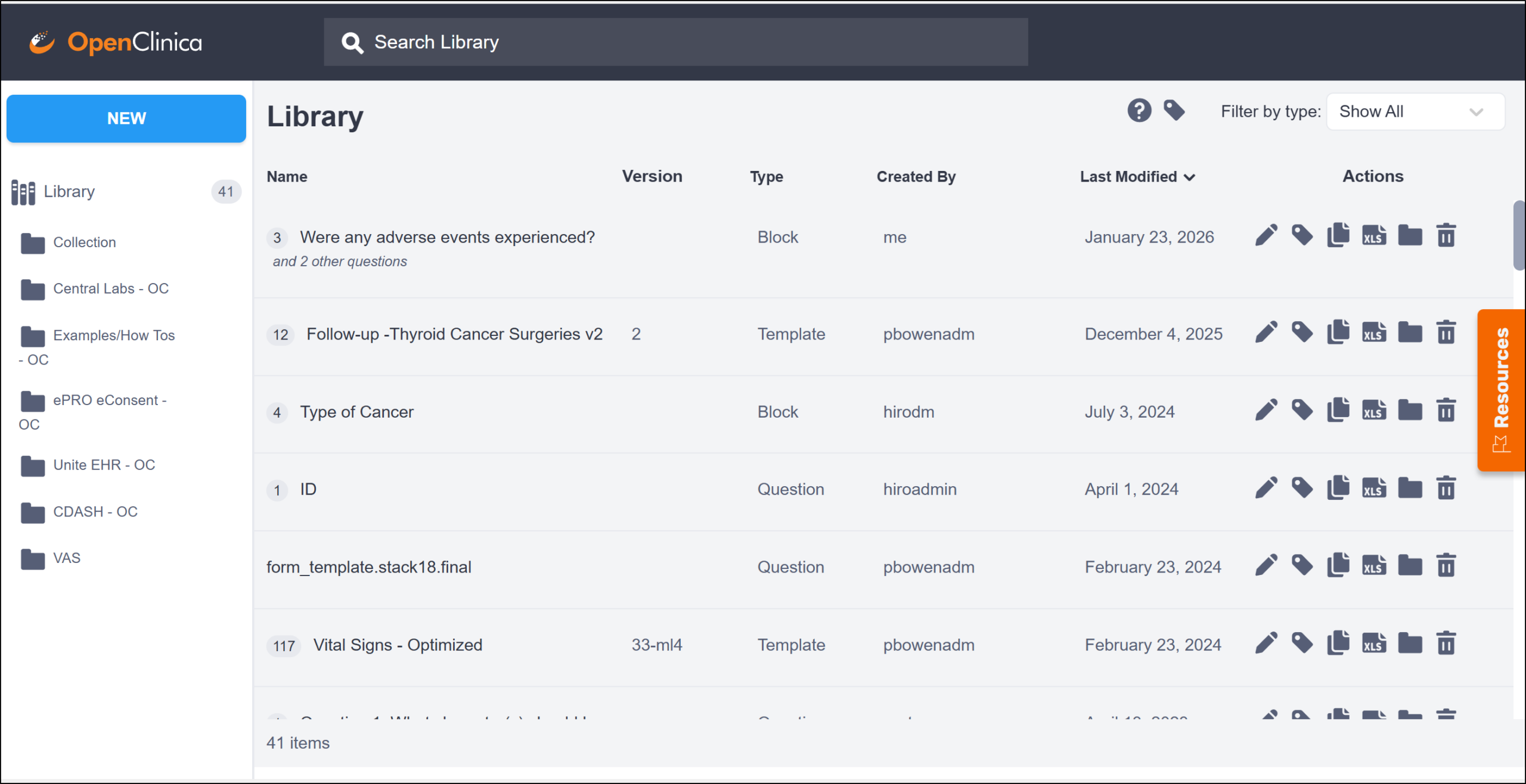
The Library screen displays all available library items.
Content Library Item Types
Icons appear next to each item name to indicate the item type. The number shown on the icon represents the total number of items (including item groups) contained in the item.
| Item Type | Description |
|---|---|
| Question | A single item |
| Block | Multiple items without a style or version number |
| Template | A complete form template that can either be created/edited in the form design studio or uploaded with a form |
Available Actions
Action icons appear on the right side of each item:
| Icon | Action |
|---|---|
 | Edit |
 | Label |
 | Clone |
 | Download XLS |
 | Manage Collection |
 | Delete |
Search and Filter Library Items
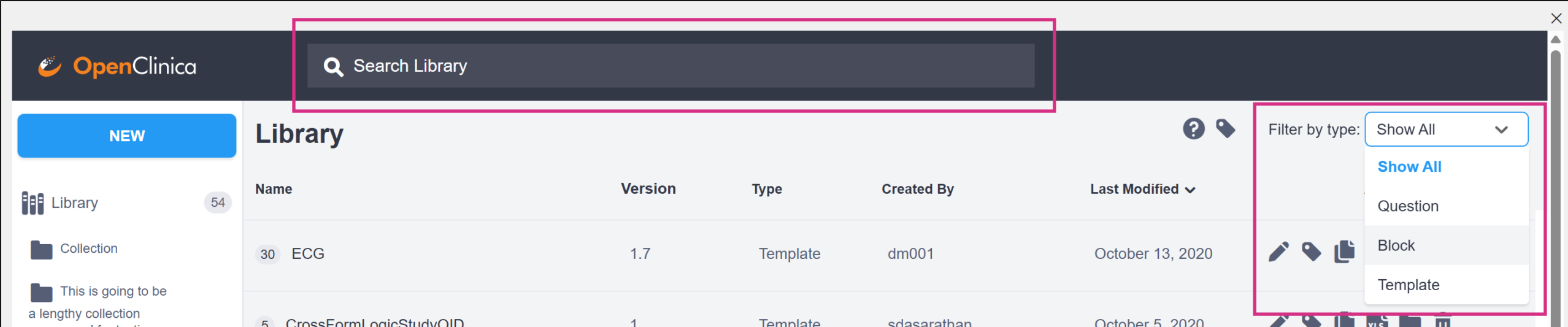
Enter text in the search field to find items by name.
Filter the list by item type: Question, Block, or Template.
Create New Content Library Items
You can create a single question, a block of questions, or a full Form Template to add to the library.
To Create Content Library Items in Form Designer:
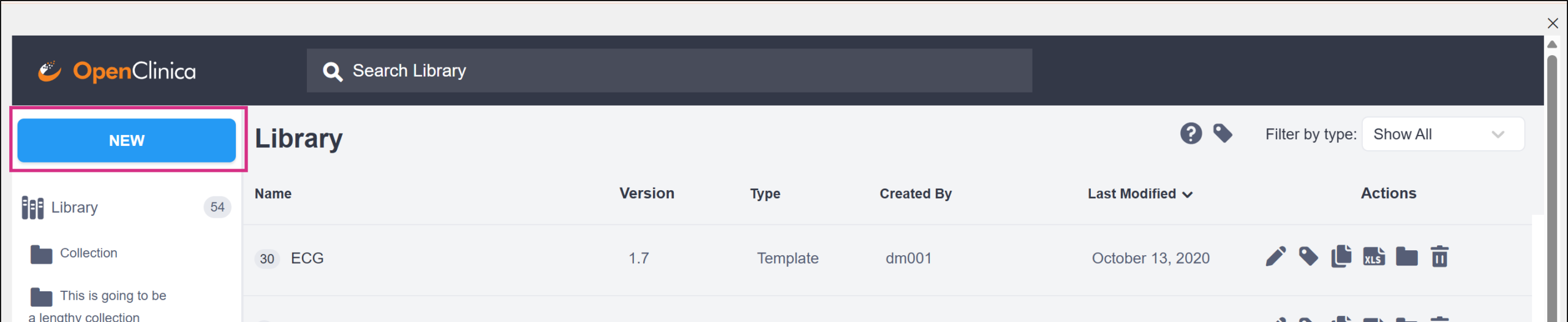
- Click New in the upper-left corner of the Library Management screen.
- Select Question.
- Click the + icon.
- Enter the question text.
- Click +Add Question.
- Select a question type.
- (Optional) Complete additional question settings as you would in Form Designer.
- (Optional) Repeat steps 3–7 to add more questions. Multiple questions are saved as a single Block.
- Click Create.
Create a Form Template
- When you click the new button in step 1 select Template from the options.
- Build a complete form as you would normally within the designer.
- Name your template and save.
Edit Library Items
To edit a question, block, or template:
- Click the Edit icon next to the item.
- Make your changes in the designer.
- Click Save Changes.
Delete Library Items
- Click the Delete icon next to the item you want to permanently delete.
- Click Delete to confirm that you want to permanently delete the item.
Use Labels
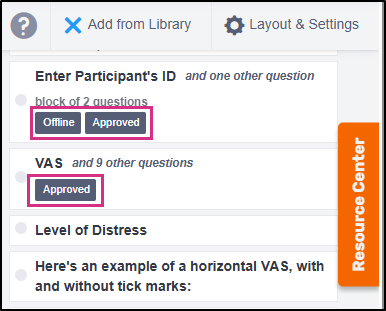
You can use labels to categorize items beyond collections. Labels appear on items when you click the Add from Library button in Form Designer and in the Add a Form dialog in Study Designer.
Add a Label
- Click the Label icon next to the item.
- Click Add Label(s).
- Enter label text.
- Press Enter.
Remove a Label
- Click the Label icon next to the item you want to remove the label from.
- Click the X next to the label you want to remove.
Clone Items
- Click the Clone icon next to the item you want to duplicate.
- Click Ok to confirm that you want to duplicate the item.
Download or Upload XLS Files
Download an XLS File
- Click Download XLS next to the item to download its .xls file.
Upload an XLS File
- In the Library, click New.
- Select Upload.
- Choose the XLS file to upload.
Use Collections
Collections allow you to group related library items.
Create a Collection:
- Click New in the upper-left corner of the Library.
- Select Collection.
- Enter a collection name.
- Click Create Collection.
Rename a Collection:
- Click the collection.
- Click the ellipsis (⋯).
- Select Rename.
Delete a Collection:
- Click the collection.
- Click the ellipsis (⋯).
- Select Delete.
Add an Item to a Collection:
- Click the Manage Collection button next to an item you want to add to the collection.
- Select the collection you want to add the item to. If there are no available collections, the selection box will say none available.
Collection labels appear on forms in the Add a Form dialog in Study Designer.
Search Library from a Form Card
You can search the Content Library directly from a Form Card when adding forms to an Event.
For information about searching for Form Templates, previewing templates, and adding them to Events, see Events & Forms.
Use the Content Library in Form Designer
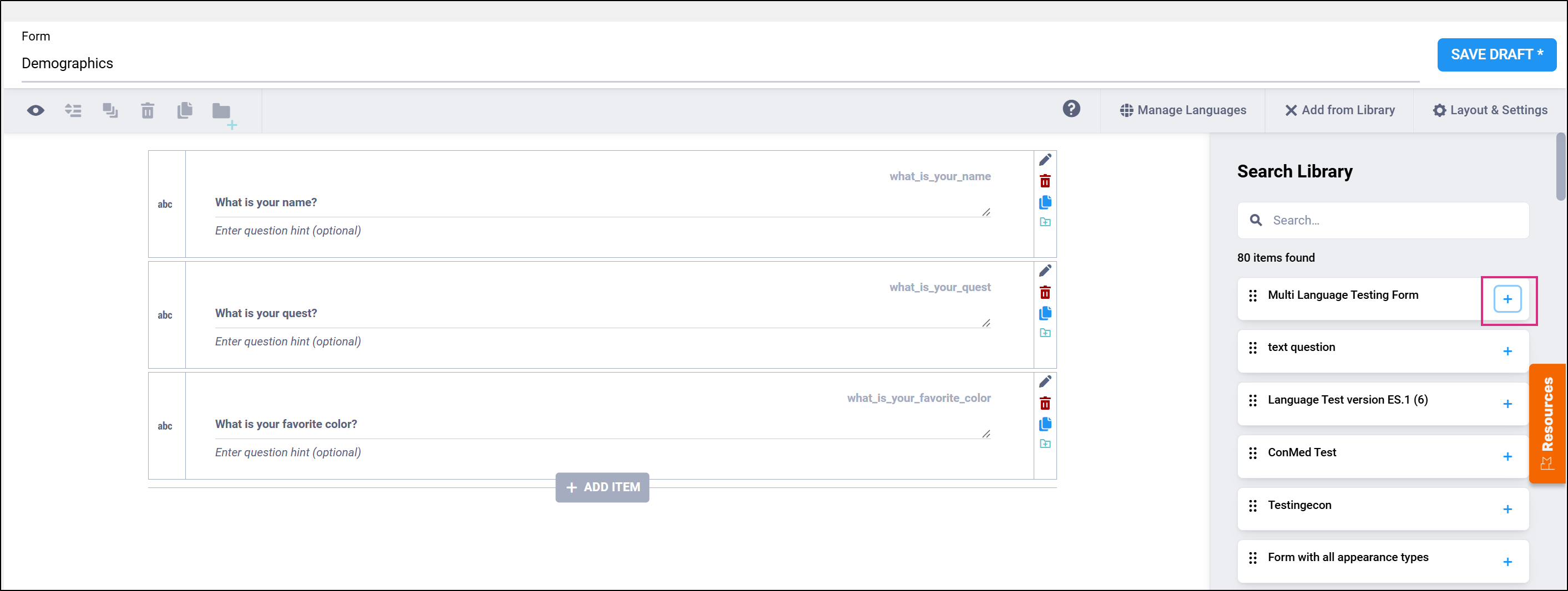
When working in Form Designer, click Add from Library to access library items. You can search the library or select items from the list.
If available, items display their labels and the number of questions included in a block or template. You can also add new items to the Content Library while working in Form Designer.
Add Items from the Library to a Form
To add an existing item to a form:
- Click Add from Library.
- Select the question, block, or template.
- Click the Add (+) button for the item from the Library.
Alternatively, drag the item onto the form and drop it when the dotted outline shows the placement location.
To add an item using the keyboard, press Tab to move focus to the + icon, then press Enter to add the item to the form.
Add Items from a Form to the Library
To add items to the Content Library:
- Click Add Question to Library next to a question, or
- Select multiple items or groups and add them as a single block.
Add Groups or Multiple Items to the Library from a Form
When editing a form, you can add multiple selected items or groups to the Content Library in a single action.
- Selecting an entire group adds the group and all its contents as a single Block.
- Items are added to the block in the same order they appear on the form.
- Items do not need to be consecutive.
The resulting block appears in the Content Library the same way as blocks created directly in the Library.
Use Library Items in an XLS Form Template
To use a library item in an XLS Form Template:
- Click Download XLS next to the item.
- Edit the XLS file as needed, or upload it without changes.
You can also download or upload XLS templates in Study Designer and then add the form template to the Content Library.
Was this article helpful?
That’s Great!
Thank you for your feedback
Sorry! We couldn't be helpful
Thank you for your feedback
Feedback sent
We appreciate your effort and will try to fix the article