Form migration enables transfer of data from one Form version to another within a study.
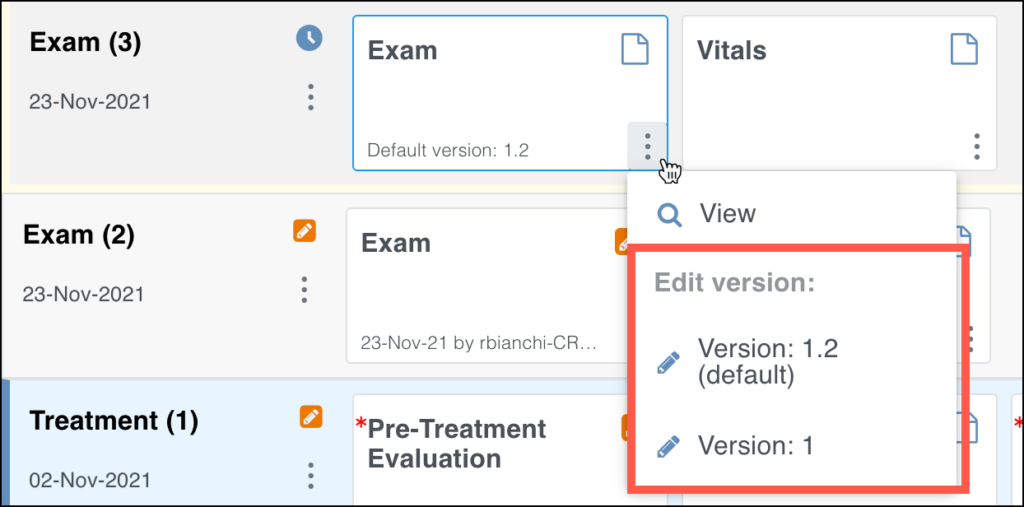
Data Managers may migrate Form data for individual Participants or perform a batch migration. If multiple versions of a Form are available before any data is entered, all users can choose which version to use. The default version displays on the Form card.
To open a non-default version, select it from the actions menu.
When data has already been entered and a new Form version becomes available, only users with the Data Manager role can migrate Form data.
Effects of Form Migration
- Audit Log: All migration activity is recorded for the affected Participant(s).
- Extracts: Data present in the original version but not included in the new version will still appear in extracts.
- Response Options:
- Responses may be removed.
- The values in the Name field for those that remain cannot be changed. For example, if the options were Mild, Moderate, and Severe (1, 2, and 3) you can remove Severe, but you cannot change Mild from 1 to any other value.
Requirements
- Data Entry Status: Data Entry Started
- Study Status: Available
- User Role: Data Manager
- Participant Status: Active
- Event Status: Active (not removed, locked, or skipped)
- Form Status: Active (not removed)
- New Form Version: Active (not removed)
- Previous Form Version: Active (used for initial data entry)
Prerequisites
- At least two versions of the Form exist in the study.
- The study is published.
Participant-by-Participant Migration
- In the Participant Matrix, select View for the Participant.
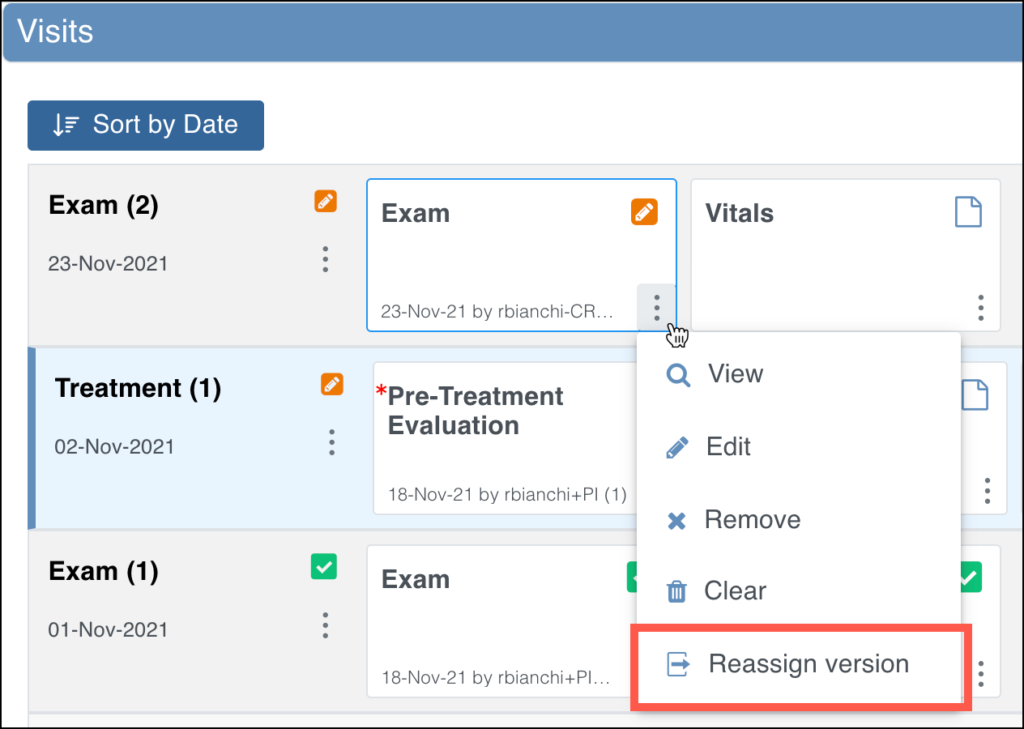
- On the Form card, open the actions menu and select Reassign Version.
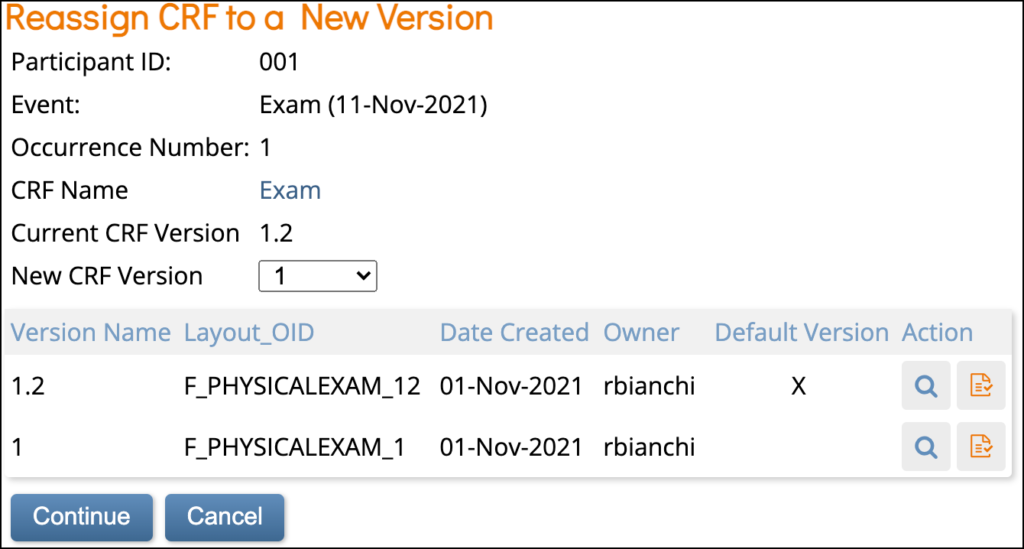
- In New CRF Version, select the updated Form version.
- Click Continue.
Batch Migration
- In the Study Runner header, select Tasks.
- Under Monitor and Manage Data, select CRFs.
- (Optional) Confirm that you are planning to migrate to and from the correct version. You can either View the Form or Download Annotated CRF.
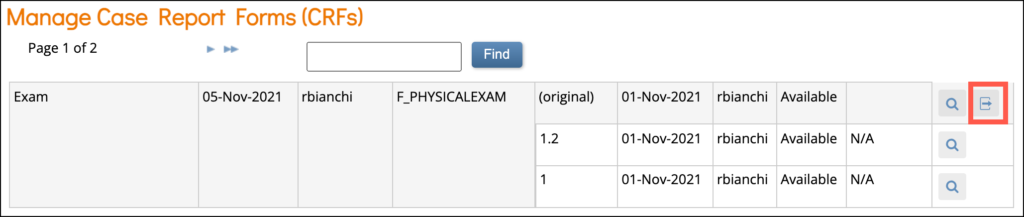
- Click the Batch CRF Version Migration button next to the CRF you want to update.
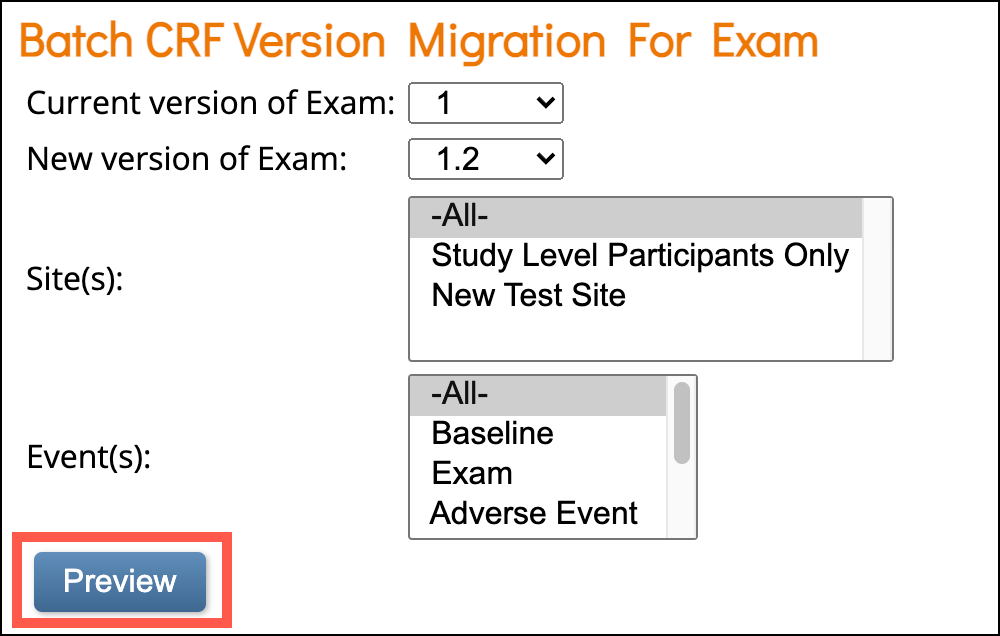
- Select the current version of the Form in the Current Version of (Form Name) field.
- Select the new version of the Form in the New Version of (Form Name) field.
- (Optional) Select a site to update the version at. (The default is all sites.)
- (Optional) If the Form is in multiple events, select an Event to update the version in. (The default is all Events.)
- Select Preview.
- Verify the Migration Summary information that appears below the Preview button.
- Select Migrate.
When you return to the CRF screen, the following message appears under Alerts in the sidebar: Batch CRF version migration is running. You will receive an email once the process is complete.
The email you receive has a link to a report of the migration, which provides a list of all Participants and Forms that the data was migrated for.
Potential Migration Outcome Examples
Example A: More Items in Original Form Version than New Form Version:
Before Migrating from Version A to B:
- Version A includes item meditem2; Version B does not.
- Both versions include item1.
After Migrating from Version A to B:
- Data for meditem2 is migrated but not visible on the Form.
- Data for item1 is migrated and is visible on the Form.
- Data from both versions appears on extracts, so there are more items.
Example B: More Response Options Available in Original Form Version than New Form Version:
Before Migrating from Version A to B:
- Both versions include item1.
- Version A has response options X, Y, Z.
- Version B has only X and Y.
- The user selected Z in the original Form version.
After Migrating from Version A to B:
- Data for item1 is migrated, but it will appear as though no response was selected since response option Z no longer exists in the new Form version.
- For single-select types: New data will overwrite existing data.
- For multi-select types: New response options will be added. (If the user selected the response option Z in the original Form version, and that option no longer exists in the new version of the Form, if they then select the response option Y, both the values of Z and Y will be stored in the database.)
Example C: The maximum number of repeats in the original Form version exceeds that in the new Form version:
Before Migrating from Version A to B:
- Both versions include repeating group group1.
- Version A permits 5 repeats; Version B permits 3.
- The user entered data for 5 repeats.
After Migrating from Version A to B:
- Only 3 rows of data appear on the Form even though version A had 5 repeats.
- No additional data can be entered.
Was this article helpful?
That’s Great!
Thank you for your feedback
Sorry! We couldn't be helpful
Thank you for your feedback
Feedback sent
We appreciate your effort and will try to fix the article