Use the Import Tabular Data feature to bulk import Participant data into Forms using a tabular data file and a corresponding data mapping file.
You import data from the Import Tabular CRF Data screen using:
- A Tabular Data file that contains Participant data.
- A Data Mapping file that maps columns in the tabular file to Form items.
When you import a flat file, each row is imported into the specified Form for a different Event occurrence for the Participant.
- If you import into a Common Event, the system creates new Event occurrences as needed.
- If you import into a Visit-Based Event, data is imported into existing scheduled Event occurrences.
Imports appear in the Bulk Actions Log. You can also download the log in a .zip file that contains 5 files.
Import Limitations
You cannot use tabular import for the following scenarios:
- Importing into Forms in non-repeating Common Events that contain multiple Forms
- Importing into items in repeating item groups
Import Data Using the Import Tabular Data Screen
- Download the Data Mapping template.
- Edit the template and save it.
- Create your Tabular Data file.
- Click Browse.
- Select both the Data Mapping file and the Tabular Data file by holding Ctrl (Windows) or Command (Mac) and selecting both files.
- Click Open.
- Click Submit.
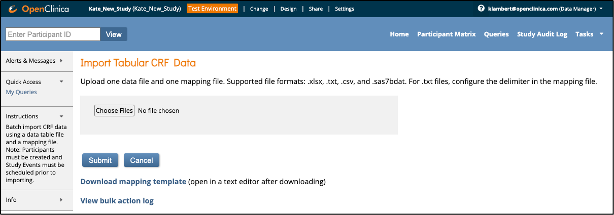
After submission, click Tasks and select Bulk Actions Log to monitor job status. From the log, you can view, download, or delete the import record.
Tabular Data File
Use this file to specify Participant IDs for the Participants with data you want to import. You can also include other data items with OIDs.
Supported formats:
- Text (.txt)
- CSV (.csv)
- Excel (.xlsx)
- SAS datasets (.sas7bdat)
If you use a text (.txt) file, you may define any delimiter (for example, comma or tab). If no delimiter is specified, the system uses a pipe ( | ) by default. You define the delimiter in the Data Mapping file (for example, Delimiter=\t).
Excel automatically formats data in a useable format, but if your data comes from another source, you might need to put the data within each column in quotes if it contains commas or other delimiter values. For example, if the data is a | b | c | d,e,f | g, "d,e,f" would need to be in quotes due to the commas within the data.
Create a Tabular Data File
- Create a tabular file as a text (.txt) document or use another supported format (see the note above). Alternately, download the sample file to edit.
- Include a column for Participant IDs.
- By default, the column header must be ParticipantID.
- You may use a custom column header if it is defined consistently in the Data Mapping file and referenced in Match Criteria.
- Enter Participant IDs.
- Add columns for associated data items.
- Separated by pipe characters or, if you have created a text (.txt) file, another delimiter of your choice.
- Leading and trailing spaces are automatically removed during import.
- Column headers must match those defined in the Data Mapping file.

Data Mapping File
You can download the current Data Mapping file template on the Import Tabular CRF Data screen. The components are described below. There are also instructions included in the template in lines beginning with #.
Use this file to map each item to a column header from the Tabular Data file. To reference an item, use the format itemgroupOID.itemOID,
Required Configuration
- Under # Study, Study Event and Form OIDs, enter values for:
- StudyOID=
- StudyEventOID=
- FormOID=
- FormVersion=
- Enter the appropriate OIDs for the Study, Event, and Form.
- Enter the Form version name.
- Under # Data file OIDs, define a row for each column header in your Tabular Data file. For each row, enter the column header name followed by the corresponding Item Group OID and Item OID using the format:
itemgroupOID.itemOIDBoth the Item Group OID and Item OID must match the OIDs defined in the Study for the item being mapped.
Example:
To import data from a column labeled Ethnicity, enter:
Ethnicity=IG_PHYSI_GRP3.I_PHYSI_PETHNIC
Optional Configuration
Specify a Column Delimiter
To define the delimiter used in the Tabular Data file, set the Delimiter value.
For example: Delimiter = |
If you do not specify a delimiter, the system uses a pipe ( | ) by default.
Use Match Criteria and Match Actions
You can use Match Criteria and MatchAction to control whether records are skipped or updated when imported data matches existing Form data.
Matching Behavior for Non-Repeating Events
When importing data into a non-repeating Visit Event or a non-repeating Common Event, the Participant ID column header defined in the mapping file can be used as the only Match Criteria.
Because non-repeating events contain only one record per Participant, the Participant ID uniquely identifies the record to be matched.
Define Match Criteria
To define Match Criteria, enter:
SkipMatchCriteria=itemgroupOID.itemOID
The Item Group OID and Item OID must match those defined in the Study.
Example:
To use First Name as Match Criteria:
SkipMatchCriteria=IG_PHYSI_GRP2.I_PHYSI_FNAME
You can specify multiple Match Criteria by separating items with commas:
SkipMatchCriteria=IG_PHYSI_GRP2.I_PHYSI_FNAME,IG_PHYSI_GRP2.I_PHYSI_LNAME.
You may also include ParticipantID or EventRepeatKey as Match Criteria by listing the corresponding column headers in the comma-separated list.
For non-repeating Visit Events and non-repeating Common Events, specifying ParticipantID alone is sufficient to match existing records.
Skip Action
If a Skip action is specified and all Match Criteria are met:
- The row is skipped.
- For non-repeating Events, records with matching Participant IDs are skipped.
- Records in the data file that do not exist in the system are imported as new records.
Update Action
If an Update action is specified and all Match Criteria are met:
- The existing record is updated using the values in the Tabular Data file.
- For non-repeating Events, the Participant ID is used to match and update records.
- Records in the data file that do not exist in the system are imported as new records.
If additional items are included in the Match Criteria along with ParticipantID, those items are used only to determine a match. Items listed as Match Criteria are not updated during the import.
No Match Criteria
If no Match Criteria are defined, or if no match is found, the data for that row is imported.
Ignore Unmapped Columns
To ignore columns in the Tabular Data file that are not referenced in the Data Mapping file, set:
IgnoreUnmappedColumns=yes
If you do not enable this option and unmapped columns exist, the import fails.
Set Form Workflow Status
Use FormWorkflowStatus to define the final workflow status for Forms after the import completes. Valid values are:
- Initial Data Entry
- Data Entry Complete
Specify a Reason for Change
To record a Reason for Change for data updated through a Match Update, specify a value in the Data Mapping file. The default value is: Update via Import
Save the Data Mapping File
After completing all required and optional configurations, save the file with the .properties extension.
Log File
For each import, the system generates a log file named: datafilename_log.txt (The system replaces "datafileneame" with the name of your Tabular Data file.)
If you reuse the same data file name, new results are appended to the existing log.
The log includes:
- Row number: The row number of the record in the Tabular Data file
- ParticipantID: The value of the Participant ID in the Tabular Data file
- Status: The outcome of the import indicated by the values Completed, Failed, or Completed with Errors
- Message:
- For a failed import, displays an error code.
- For a successful import, displays the values imported or skipped.
Download the Log File
After the import completes, click Download in the Actions column of the Bulk Actions Log.
Common Errors
- Spaces in the Tabular Data or Data Mapping Files
- Invalid OIDs
- Items spelled differently in Data Test and Data Map File
- Mismatched number of columns in the Tabular Data File and entries in the Data Mapping File
- Items not in the correct format of itemgroupOID.itemOID
- Items listed by item name, not internal item name (variable)
- A status of Completed with Errors will be assigned if the job completed with any row failures. Rows that did not have errors will have imported successfully with this status.
Common Error Codes and Messages
| Error Code | Message |
|---|---|
| errorCode.ValidationFailed | This is not the correct response set. |
| errorCode.ValidationFailed | You have a date value which is not in ISO 8601 format at the (Form OID) Check it and try again |
| errorCode.ValidationFailed | This field should be a number. |
| errorCode.ValidationFailed | The Event CRF you are trying to update does not have the correct status. |
| errorCode.ValidationFailed | Your CRF Version (Form OID) did not generate any results in the database. Check it and try again. |
| errorCode.ValidationFailed | Your Participant OID (Participant OID) does not reference an existing Participant in the study. |
| errorCode.ValidationFailed | You do not have a user role set up for (user role) in study (Study OID) |
| errorCode.ValidationFailed | Your Study Event (Event OID) for Participant OID (Participant OID) does not reference an existing Study Event in the Study. |
| errorCode.ValidationFailed | The Item Group (Item Group OID) did not generate any results in the database. Check it and try again. |
| errorCode.ValidationFailed | Your Form Layout OID (Form Layout OID) for Form OID (Form OID) does not reference a proper Form Layout in the Form. |
| errorCode.dataRowMissingPipe | Error-data file format not match header - less pipe than header |
| errorCode.Exception | Error processing data import request. |
Was this article helpful?
That’s Great!
Thank you for your feedback
Sorry! We couldn't be helpful
Thank you for your feedback
Feedback sent
We appreciate your effort and will try to fix the article