ℹ️ This page is for study builders, such as Data Managers, who add logic to forms in Form Designer.
In OpenClinica, the AI Assistant is an artificial intelligence (AI) tool in Form Designer that writes a form logic expression from a plain-language description. Use it to create relevant logic (skip logic), validation criteria (edit checks), required logic, default values, calculations, and repeat counts for a form (an electronic case report form, or eCRF). You review each proposed expression before you apply it and you test the expression in form preview before adding the form to your study. Human review is required to ensure the generated expression does what you expect it to do.
For an overview of every type of form logic and the XLSForm syntax, see Form Logic.
Generate an Expression with the AI Assistant
In OpenClinica Form Designer, you open the AI Assistant from a logic tab in the settings of an item (one question or data field) or a group. The AI Assistant is available on every logic tab: Relevant Logic, Validation Criteria, Required Logic, Default Value, Calculation, and Repeat Count. For what each tab controls, see Where to Add Form Logic in Form Designer.
Prerequisites
- You must have access to edit the form in Form Designer.
- The form must not be locked.
- The items you refer to must already exist on the form.
Steps
- Open the form in Form Designer.
- Click the pen icon on the item, or the Edit button on the group header.
- Click the tab for the logic you want to add, for example Relevant Logic.
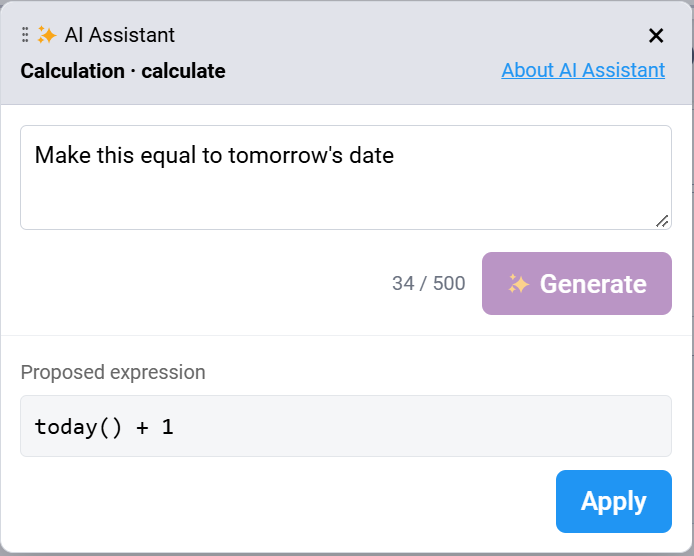
- Click AI Assistant. The AI Assistant dialog opens. Below the title, the dialog shows the type of logic and the item name, for example Calculation · bmi. On the Validation Criteria tab, the type of logic is shown as Constraint Logic.
- In the prompt box, describe what you want the expression to do. Refer to other items by their item names. For example: "Show this item only when sex is female." You can enter up to 500 characters. A counter shows how many you have used, for example 38 / 500.
- Click Generate. Generating… shows while the AI Assistant works. The result appears below the prompt box under Proposed expression.
- Review the proposed expression. To change it, edit your description and click Generate again. Your new description revises the current proposal, so you can make short follow-up requests such as "round the result to one decimal place". If the item already has an expression on this tab, your first description is treated as a change to that expression.
- Click Apply.
- If the Expression field is empty, the dialog closes and the expression is added to the field.
- If the Expression field already contains an expression, the message "This will replace the current expression. Continue?" appears in the dialog, with the note "Applying the generated expression overwrites what's in the editor — whether you typed it or generated it earlier." Click Confirm to replace it, or Cancel to keep the current expression and return to the proposal.
- Review the expression in the Expression field. You can edit it directly. The system checks the syntax and shows any errors below the field (see Check Expression Syntax).
- Click Save Draft.
The expression is saved with the form draft. Next, test the logic (see Test Your Form Logic).
Close the AI Assistant Without Applying
In OpenClinica Form Designer, you can close the AI Assistant at any time without changing the item. Click the close icon (×) or press Escape. The dialog closes and any proposal you did not apply is discarded. The Expression field does not change. While the replace confirmation is showing, the close icon is unavailable, and Escape cancels the confirmation instead of closing the dialog.
What Can the AI Assistant Do?
The AI Assistant in OpenClinica Form Designer has these limits:
- It writes one XLSForm expression at a time for the item and tab you opened it from.
- It can refer only to items and choices on the current form. It cannot write cross-form logic or refer to events (study visits). Write those expressions yourself in the Expression field.
- It uses only functions that OpenClinica has validated. For a description of each function, see Functions. When a function that is not validated would be the usual choice, it uses validated functions that give the same result where possible, for example int() instead of floor() for a value of 0 or more. Functions you type yourself are not restricted in this way.
- It does not answer questions or explain expressions. If your description does not ask for an expression, it shows a message instead of a result.
- On the Relevant Logic, Validation Criteria, and Required Logic tabs, it always writes a true-or-false condition. If you describe a value, it writes the condition that the value implies.
- On the Repeat Count tab, it writes an expression that always gives a whole number of 0 or more.
- It compares answers to choice names, not choice labels.
- It cannot write an expression that uses only some rows of a repeating group. For example, it cannot write a total, average, highest value, or lowest value that leaves out unanswered rows. It can count the answered rows.
What Else Should I Know About the AI Assistant?
In OpenClinica Form Designer, the AI Assistant works as follows while you edit a form:
- While the dialog is open, you can scroll the form but you cannot edit it. You can move the dialog by dragging its title bar.
- When you reopen the AI Assistant for the same item and tab during your session, the prompt box shows your last description. Generate is available again after you change the text. Descriptions are not saved with the form.
- You can complete the whole workflow with the keyboard. Press Tab to move between controls and Enter or Space to select the focused control. When the replace confirmation appears, focus moves to Cancel.
- The saved form does not record whether an expression was written by the AI Assistant or typed by hand.
What Information Is Sent to the AI Assistant?
In OpenClinica Form Designer, the About AI Assistant notice in the dialog lists what is sent when you click Generate. To see it, click About AI Assistant. To close it, click Dismiss. The notice states:
"Your description, this form's definition — every item and group with its properties, choice lists, and every expression already on the form — and the currently proposed expression when you revise one, are sent to Anthropic to generate or revise the expression. Participant data is never sent."
Frequently Asked Questions
These answers cover common questions about the OpenClinica AI Assistant.
Can the OpenClinica AI Assistant write form logic for me?
Yes. In OpenClinica Form Designer, click AI Assistant on any logic tab, describe the logic in up to 500 characters, and click Generate. Review the proposed expression, then click Apply to add it to the Expression field. The AI Assistant can refer only to items and choices on the current form. Always test the result in Preview.
Is participant data sent to the OpenClinica AI Assistant?
No. Only your prompt, the current form’s definition (every item and group with its properties, choice lists, and every expression already on the form), and the current proposed expression (when you revise one) are sent to Anthropic to generate the expression. Participant data is never sent.
Which form logic tabs support the OpenClinica AI Assistant?
In OpenClinica Form Designer, the AI Assistant is available on every logic tab: Relevant Logic, Validation Criteria, Required Logic, Default Value, Calculation, and Repeat Count. Click AI Assistant at the right end of the tab heading to open it. It writes one XLSForm expression at a time for that item and tab.
Related Articles
These OpenClinica articles cover related form design tasks.
Was this article helpful?
That’s Great!
Thank you for your feedback
Sorry! We couldn't be helpful
Thank you for your feedback
Feedback sent
We appreciate your effort and will try to fix the article